
- Create a folder in your computer's local C:\ called Ostendo Continuum. This must be separate to any Ostendo 242 folders.
- Add a sub-folder named Debug
- Download the Ostendo files sent to you from your Ibis consultant and paste into your Ostendo Continuum folder.
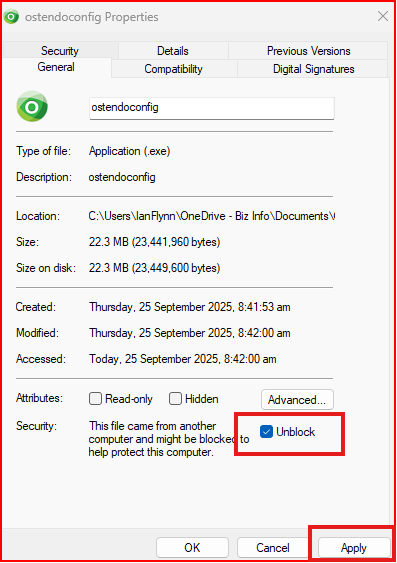
- Right click on the ostendoconfig.exe file and select Properties. Tick the Unblock box as below if it is visible.
- Run the ostendoconfig.exe file, which will open the screen below (you do not need administrator rights). This will also create an ostendo.exe file in the same folder.
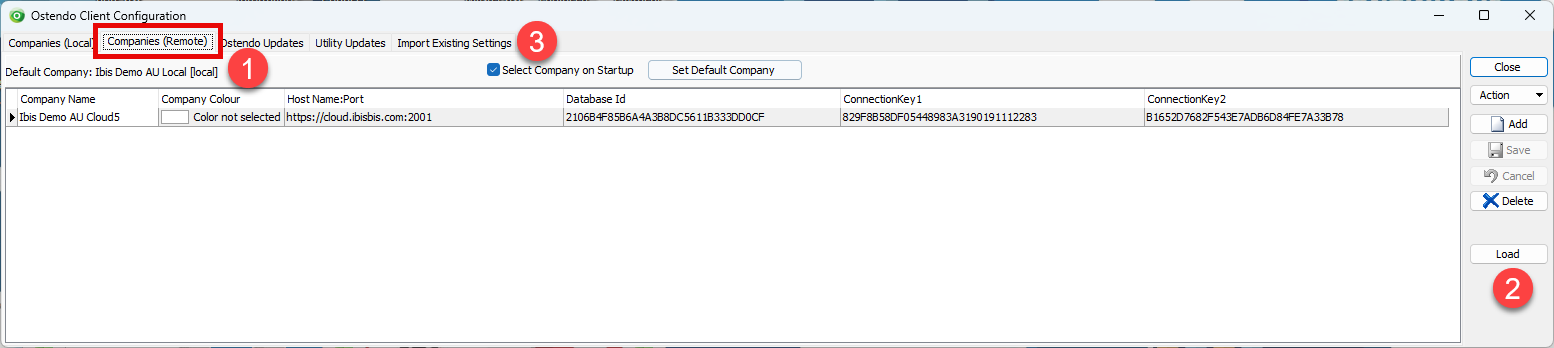
- Open the Companies (Remote) tab
- Click on Load and select the clientconfig.txt file you were provided.
- Select the Startup Company and click 'Set Default Company'.
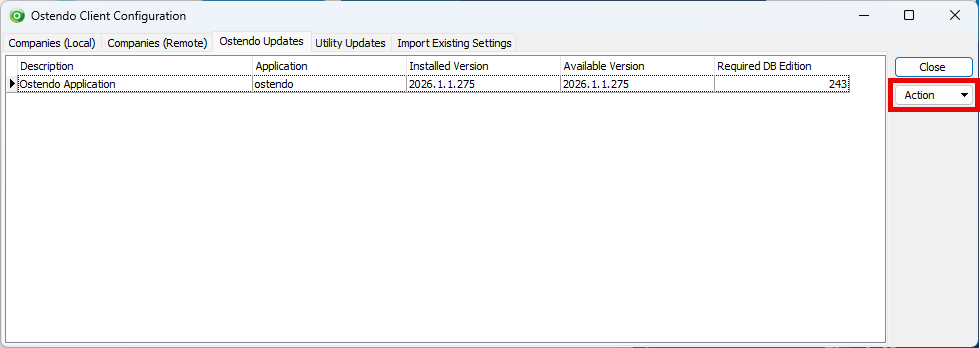
- In the Ostendo Updates tab select Action>Download and Update to upgrade Ostendo to the latest version
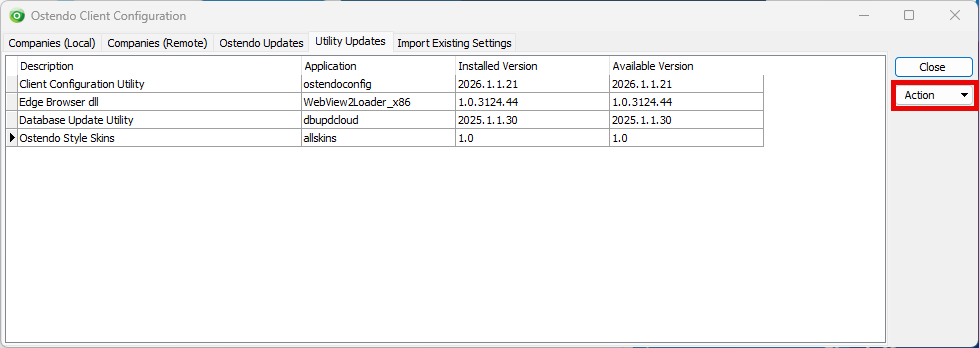
- Do the same for each line on the Utility Updates tab
- Create a shortcut icon on your desktop for ostendoconfig.exe by right clicking on the icon, selecting 'Show More Options', then 'Send To' and 'Desktop (create shortcut)'. This is where you can apply updates to Ostendo Continuum as they are released on the web.
- Create a shortcut icon on your desktop for the ostendo.exe file by right clicking on the icon, selecting 'Show More Options', then 'Send To' and 'Desktop (create shortcut)'. This is what you will use to open Ostendo Continuum on your computer.
Ibis Business Intelligence Solutions
Website: www.ibisbis.com | Email: info@ibisbis.com
Australia: 1800 427 424 | New Zealand: 0800 427 424
© Copyright Ibis Business Intelligence Solutions. All rights reserved! By accessing this website you accept our Terms of Use.